Main Settings
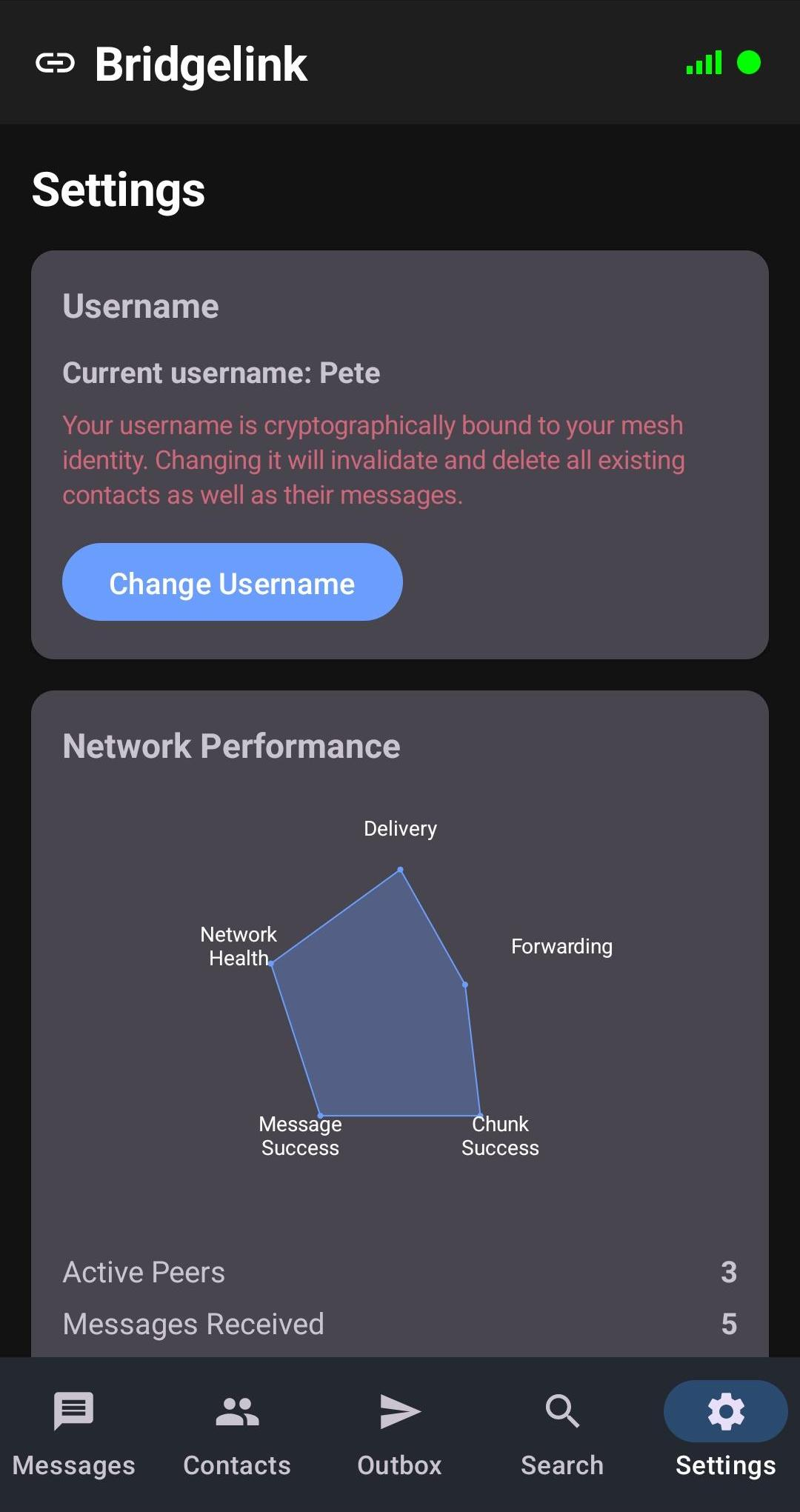
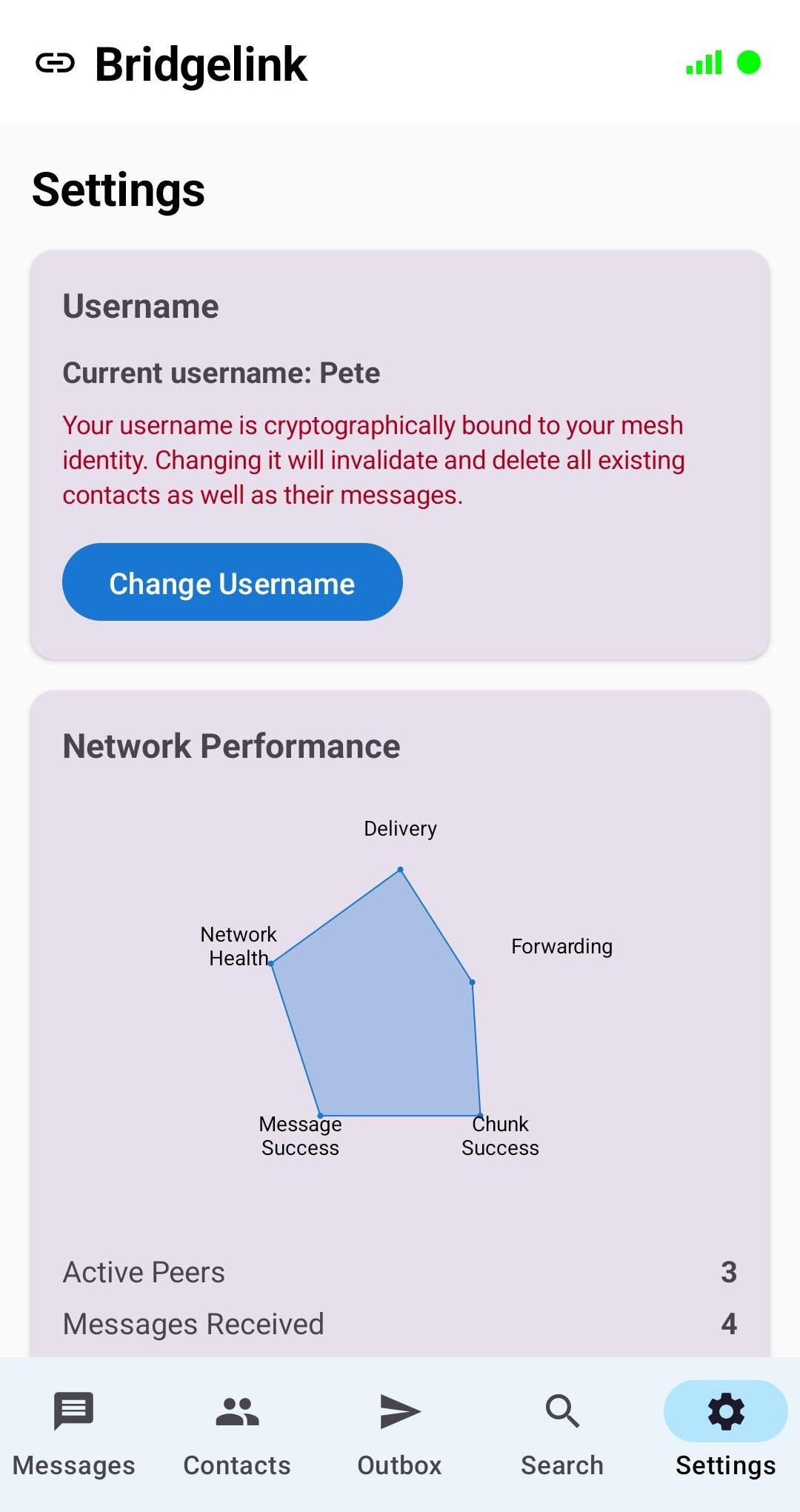
The main settings page provides quick access to your profile, network performance monitoring, and app information.
Username
Your display name visible to contacts. Set during initial setup. This is the name others see in their contact list and chat screens.
Network Performance
Real-time display of your mesh network statistics including connected peers, messages relayed, and delivery success rates. The signal bar indicator provides at-a-glance network health.
About
App version information and acknowledgments.
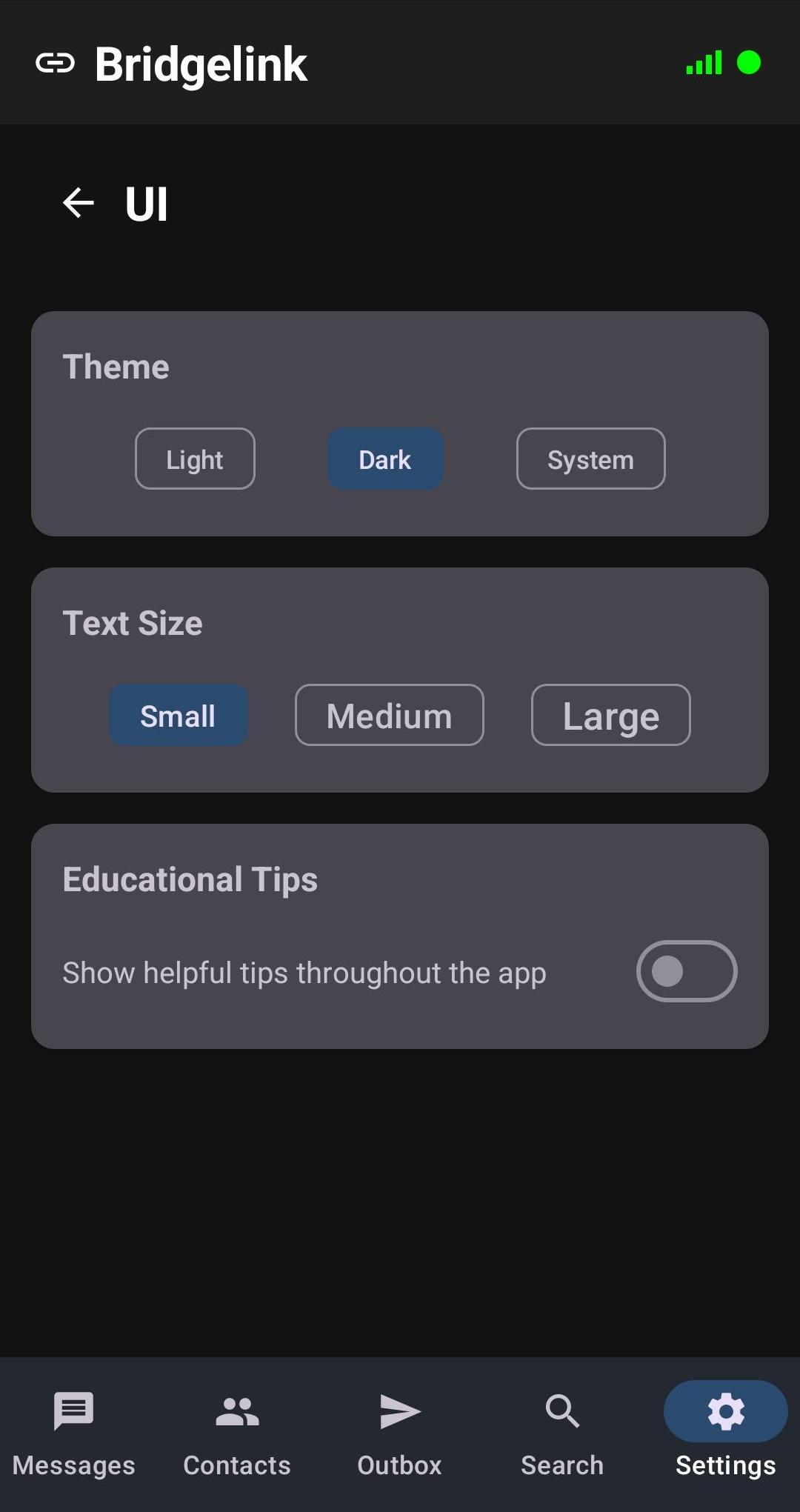
UI Settings
Customize the look and feel of Bridgelink.
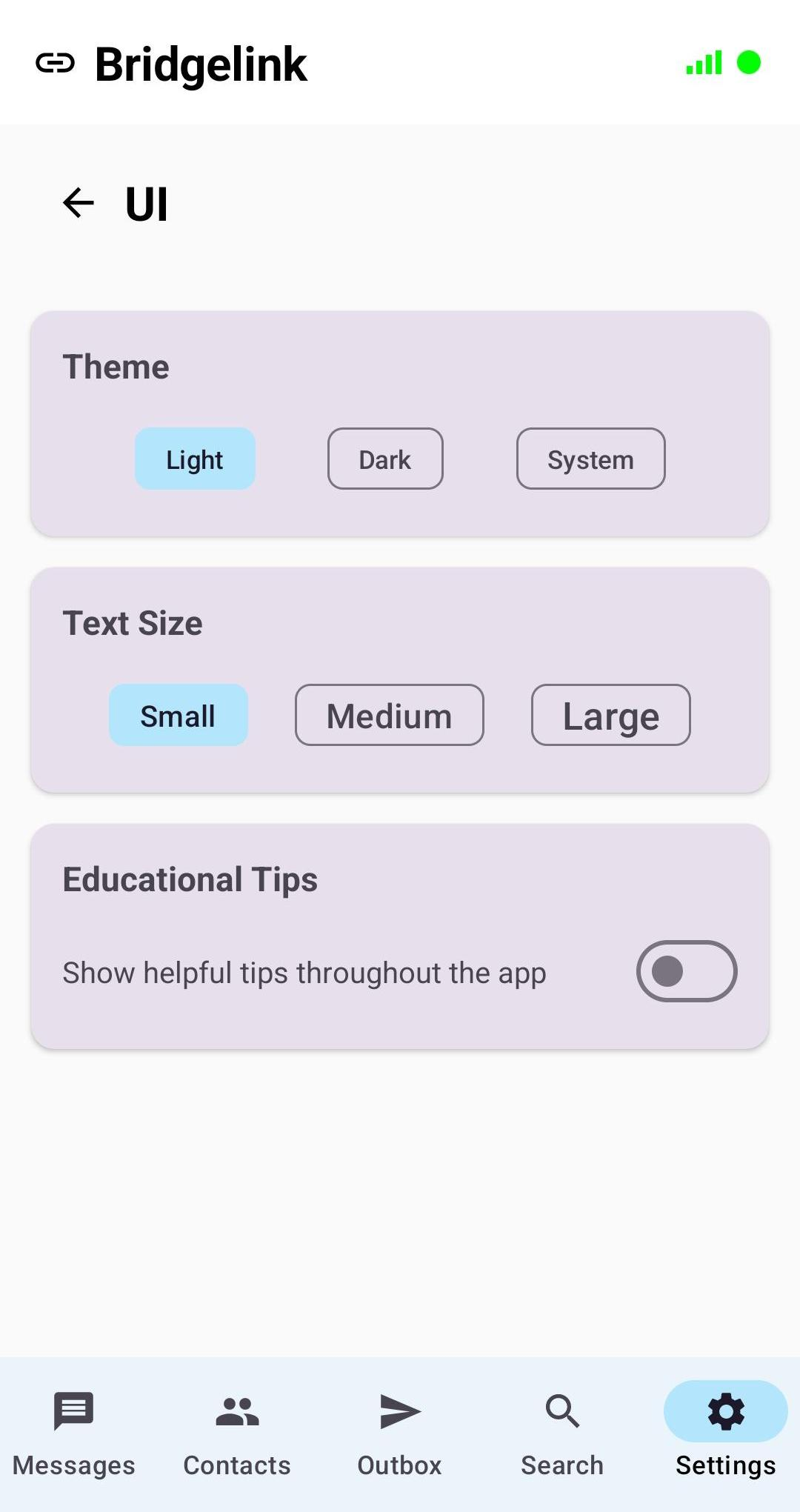
Theme
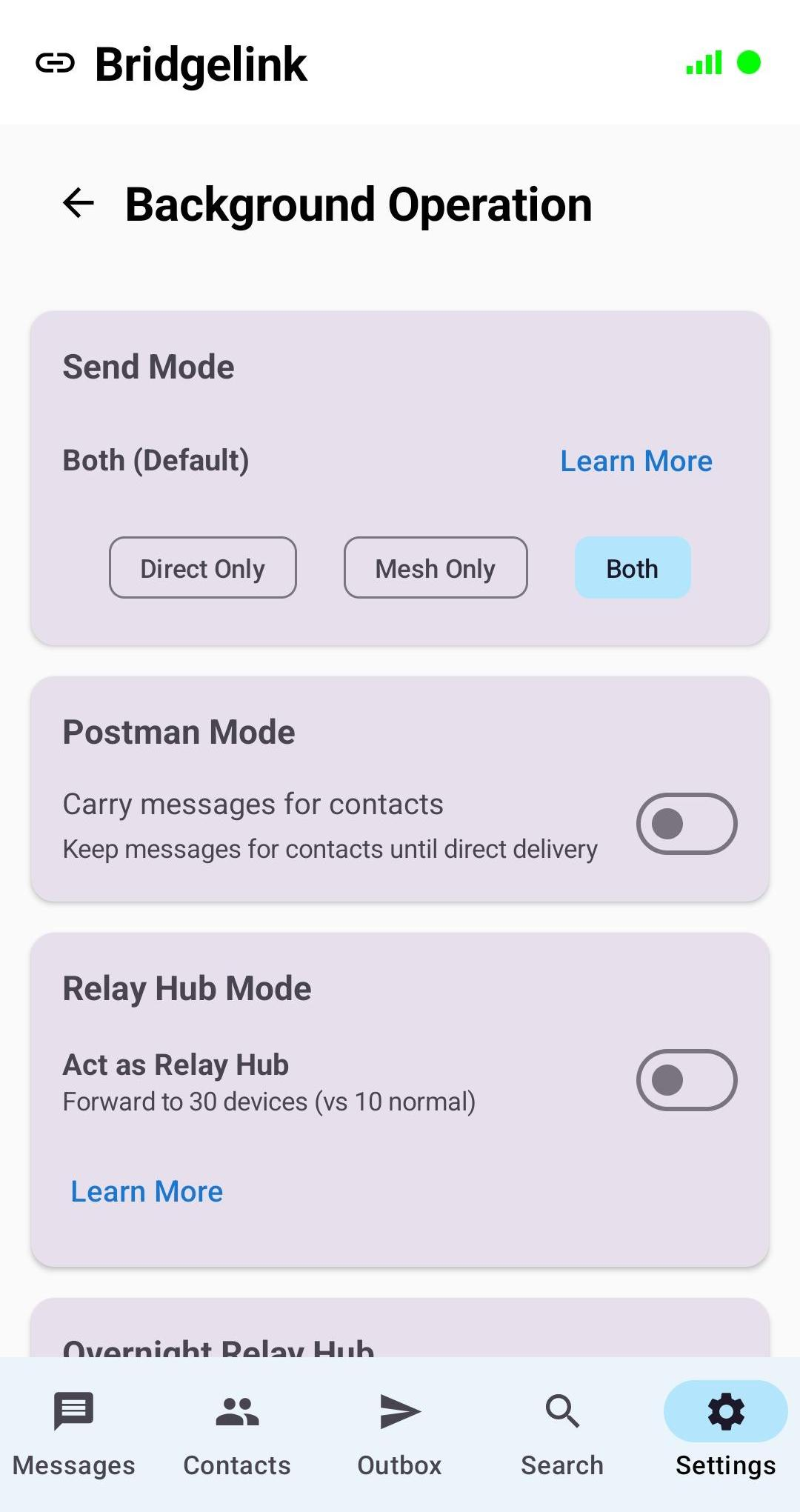
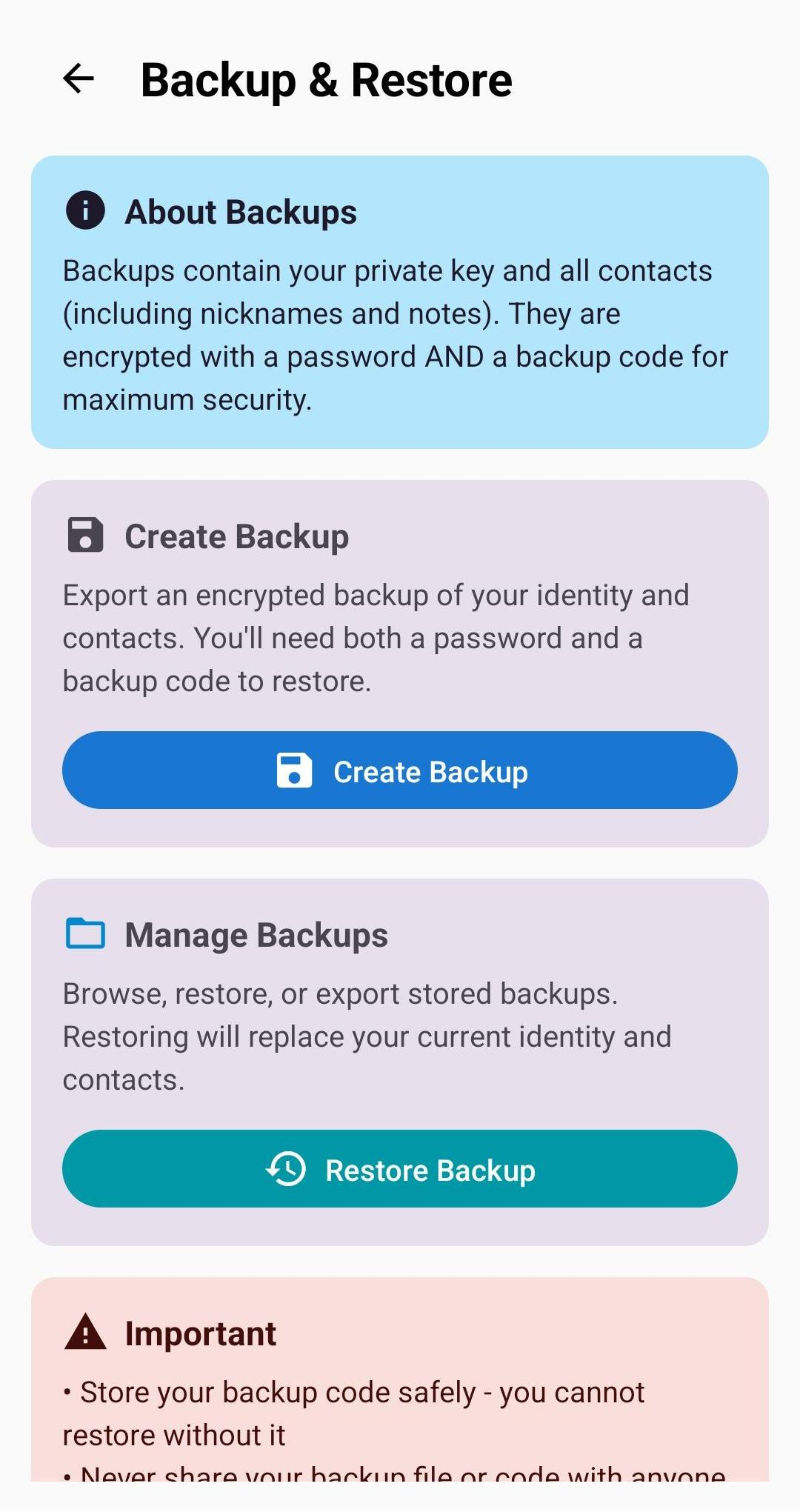
Switch between light and dark themes. The app respects Material Design 3 guidelines with appropriate contrast ratios in both modes.
Text Size
Adjust message text size for comfortable reading. Useful for accessibility or personal preference.
Educational Tips
Toggle helpful tips and explanations throughout the app. Useful when learning Bridgelink's features; can be disabled once familiar.
Privacy Settings
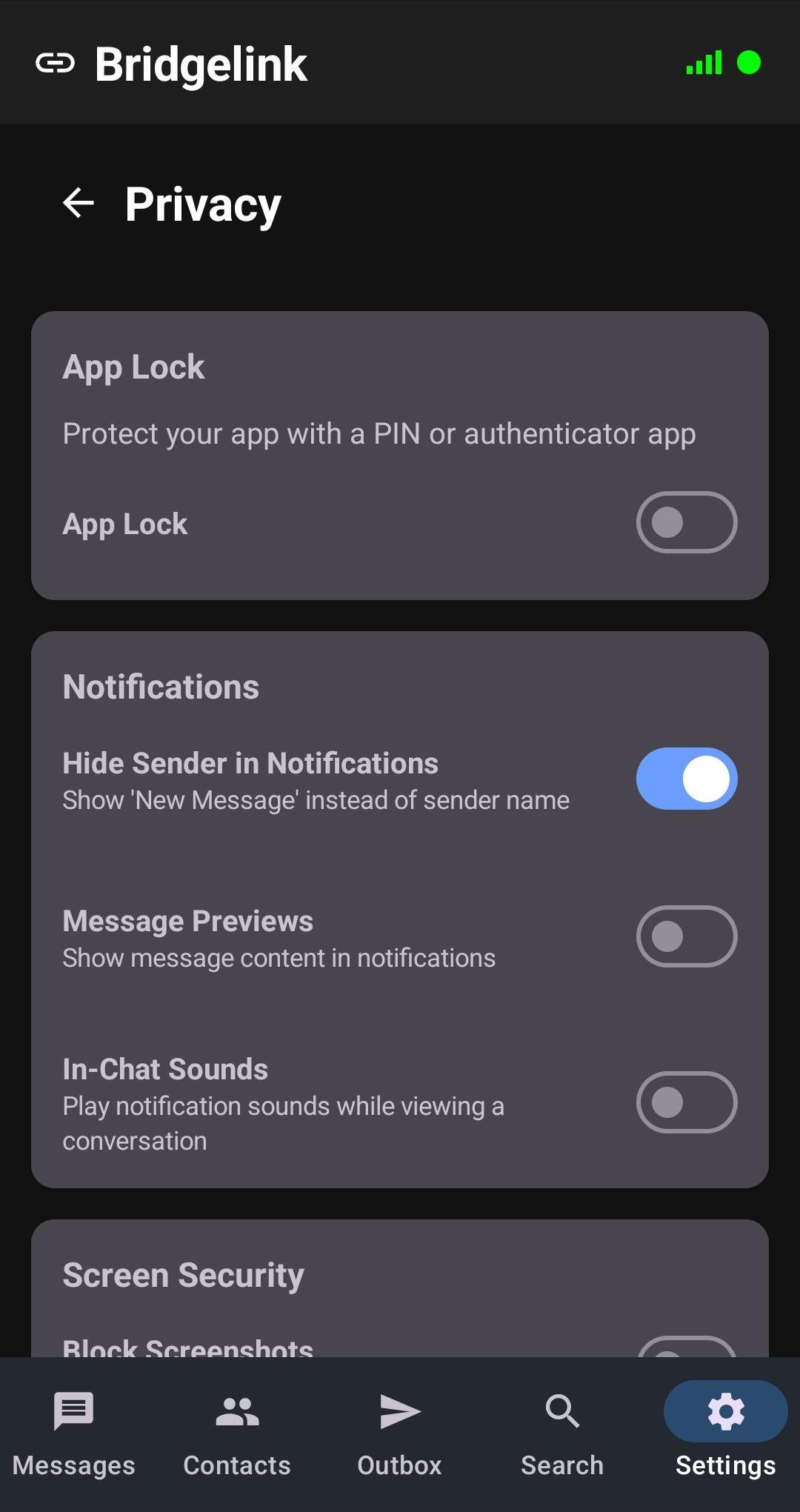
The most comprehensive settings page with full control over your app's security posture.
App Lock
Enable/disable the app lock. When enabled, requires authentication to access the app.
Biometric Authentication
Use fingerprint as an alternative to PIN/TOTP for faster unlocking. Requires a primary authentication method to be set first.
Settings Lock
Require authentication before accessing settings. Prevents unauthorized configuration changes.
Two-Factor Authentication (TOTP)
Add a second factor using any TOTP authenticator app (Google Authenticator, Authy, etc.). Generates 6-digit codes that rotate every 30 seconds.
Duress PIN
Set an alternate PIN that silently wipes all app data when entered under duress. The app retains your username and appears freshly set up for plausible deniability. When a duress PIN is configured, all notifications are silenced to prevent exposure. Requires PIN-based App Lock to be enabled.
Lock Triggers
Configure when the app automatically locks: on screen off, when leaving the app, or after a period of inactivity (1m / 5m / 15m / 30m / Never).
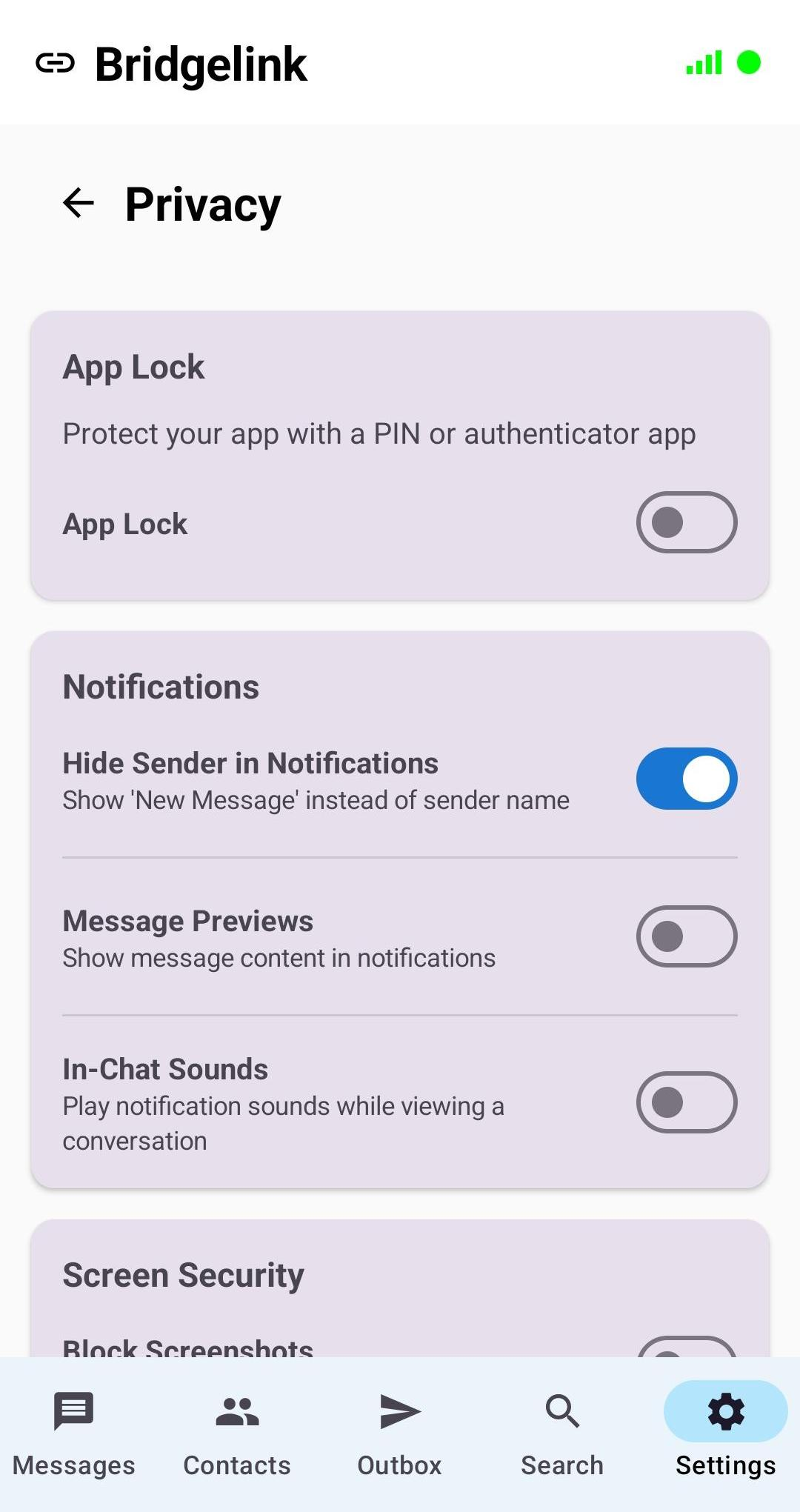
Notification Privacy
Two separate controls for notification content. Hide Sender replaces the sender's name with "New Message". Message Previews controls whether the actual message text appears in notifications or is replaced with "Tap to open". Both can be combined for maximum privacy.
Screen Security
Two options to protect on-screen content. Block Screenshots prevents screenshots and screen recording of the app. Incognito Keyboard disables keyboard learning and suggestions so your messages aren't stored in your keyboard's dictionary.
Message Retention
Set how long messages are stored on your device before being automatically deleted. Applies to both direct and group messages. Configure a custom duration in hours, days, months, or years.
Intruder Detection
Silently captures a front-camera photo on failed unlock attempts. View captured photos in a built-in gallery. Stores up to 50 photos with automatic cleanup.
Background Operation Settings
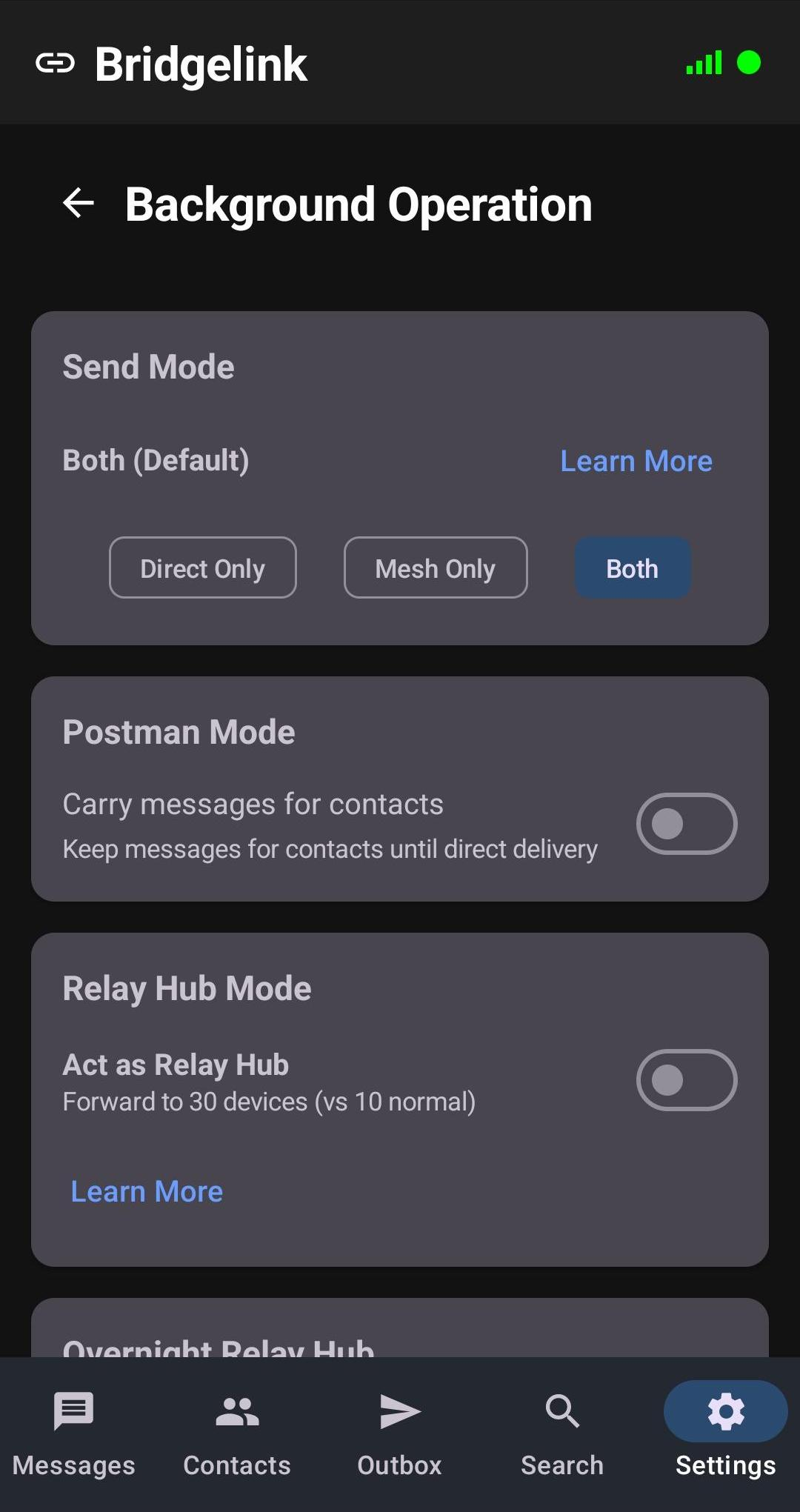
Control how Bridgelink operates in the background and participates in the mesh network.
Send Mode
Choose between DIRECT_ONLY (max privacy), MESH_ONLY (max location privacy), or BOTH (balanced, default). Each mode affects how your messages are transmitted through the network.
Postman Mode
Enable to physically carry messages for your contacts. Doubles capacity to 200 messages and prioritizes delivery to your contacts' recipients.
Relay Hub Mode
Turn your device into a mesh supernode. Increases peer forwarding from 10 to 30 and relay storage from 10MB to 30MB. Rate limited at 100 messages per minute.
Overnight Relay Hub
Configure automatic relay hub activation during specified hours when charging. Choose display mode (Stats / Digital Clock / Analog Clock) and theme.
Background Reliability
Fine-tune how aggressively Bridgelink maintains background connections. Balances between reliability and battery consumption.
Persistent Notification
When enabled (default), the background service notification is recreated each time you open the app. On Android 14 and newer, Google allows users to swipe away foreground service notifications ‐ enabling this setting ensures the notification reappears when you return to Bridgelink, keeping the background service visible and helping Android prioritise it. Disable if you prefer the notification to stay dismissed after swiping it away.
Backup & Restore
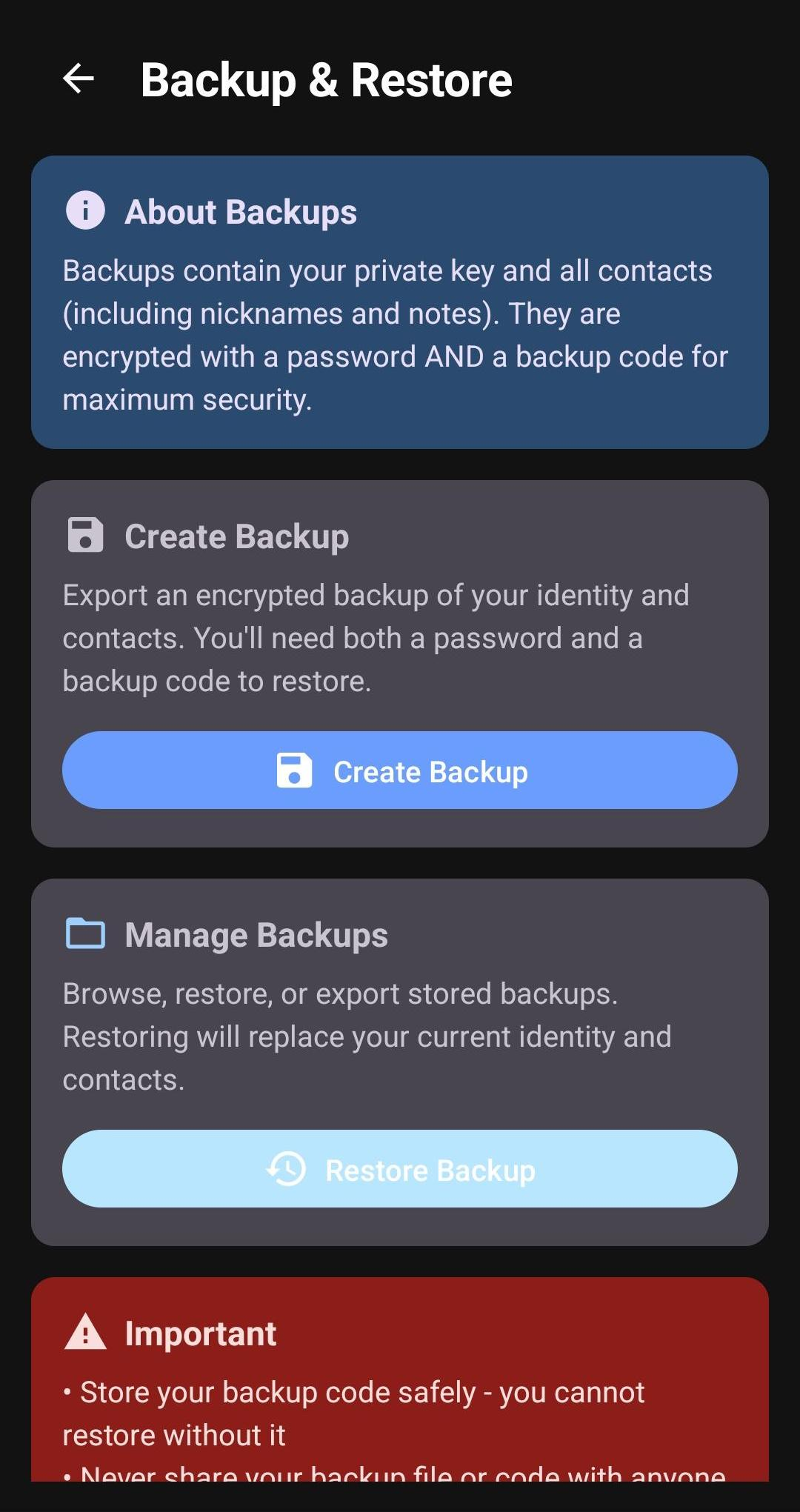
Securely backup and restore your Bridgelink data.
Create Backup
Export an encrypted backup file containing your identity, and contacts. Protected with Argon2id key derivation and AES-256-GCM encryption. You'll need both your password and a generated 32-character hex backup code to restore.
Restore from Backup
Import a previous backup file to restore your identity and contacts on a new device. Requires both the original password and 32-character backup code. ICE (In Case of Emergency) contacts are automatically notified when you restore.
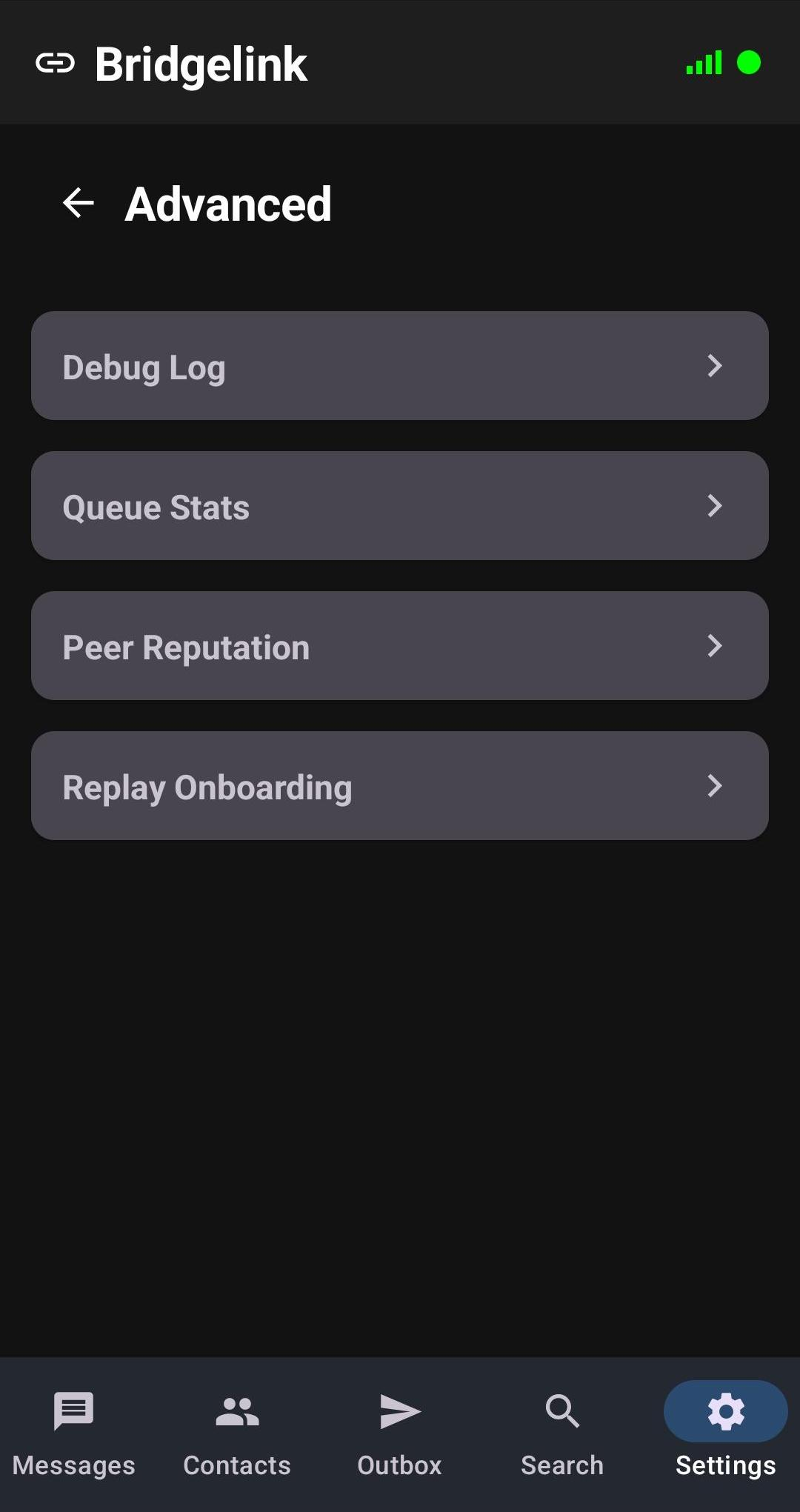
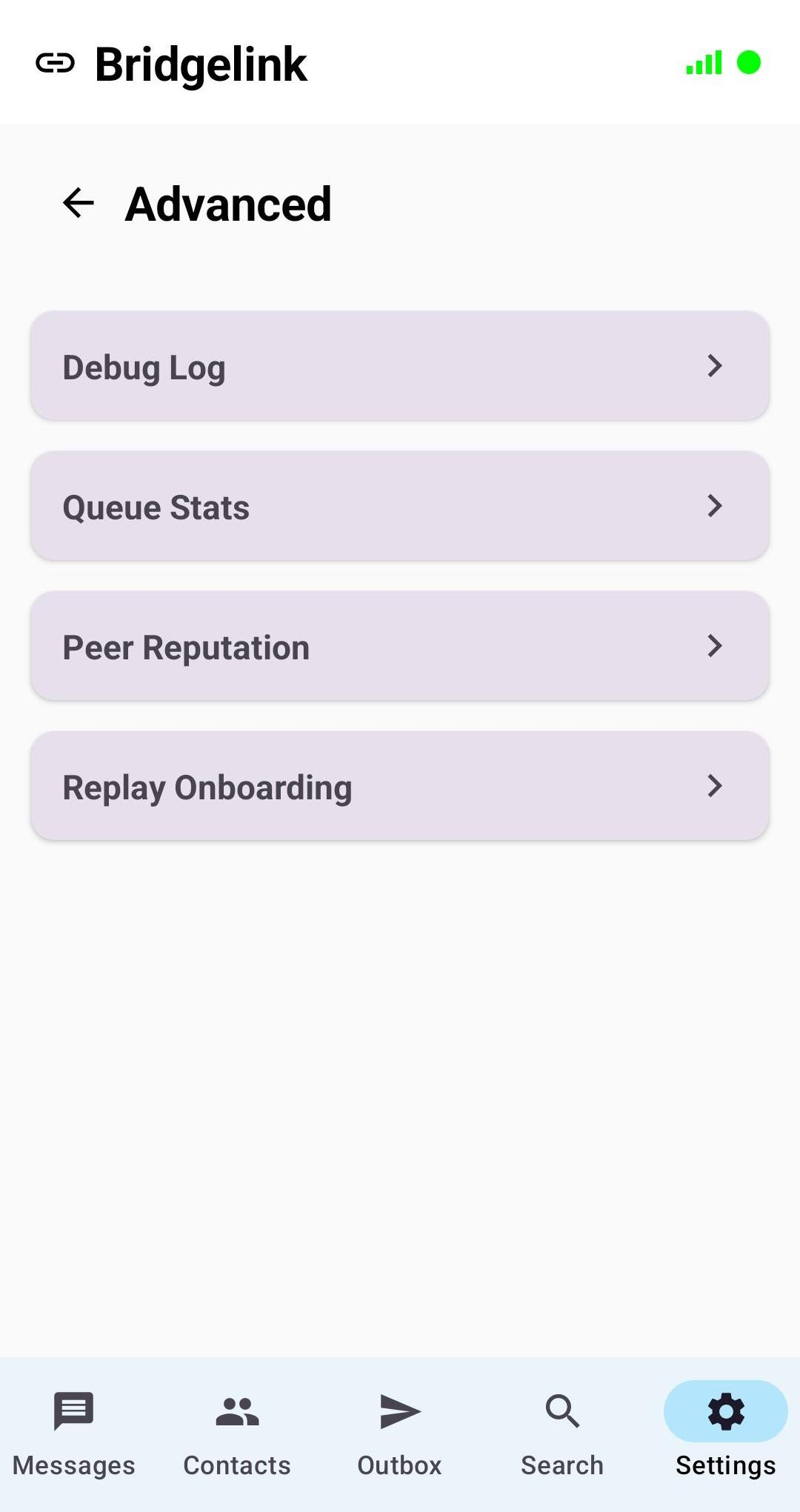
Advanced Settings
Diagnostic and development tools for power users.
Debug Log
View the debug log showing system events, message routing, peer connections, and protocol activity. Useful for troubleshooting connectivity issues.
Queue Stats
Monitor the outbox queue with information on pending, sent, and failed messages. Shows batch timing and delivery type breakdowns.
Peer Reputation
View the reputation metrics dashboard showing all tracked peers, their violation points, and current penalty status. Includes an interface to unban peers who were incorrectly flagged.
Onboarding
Re-run the initial setup walkthrough. Useful if you want to review the app's introduction or show it to someone else.